 Instrumentiverse
Introduction: Unlocking Efficiency in Modern Music Production
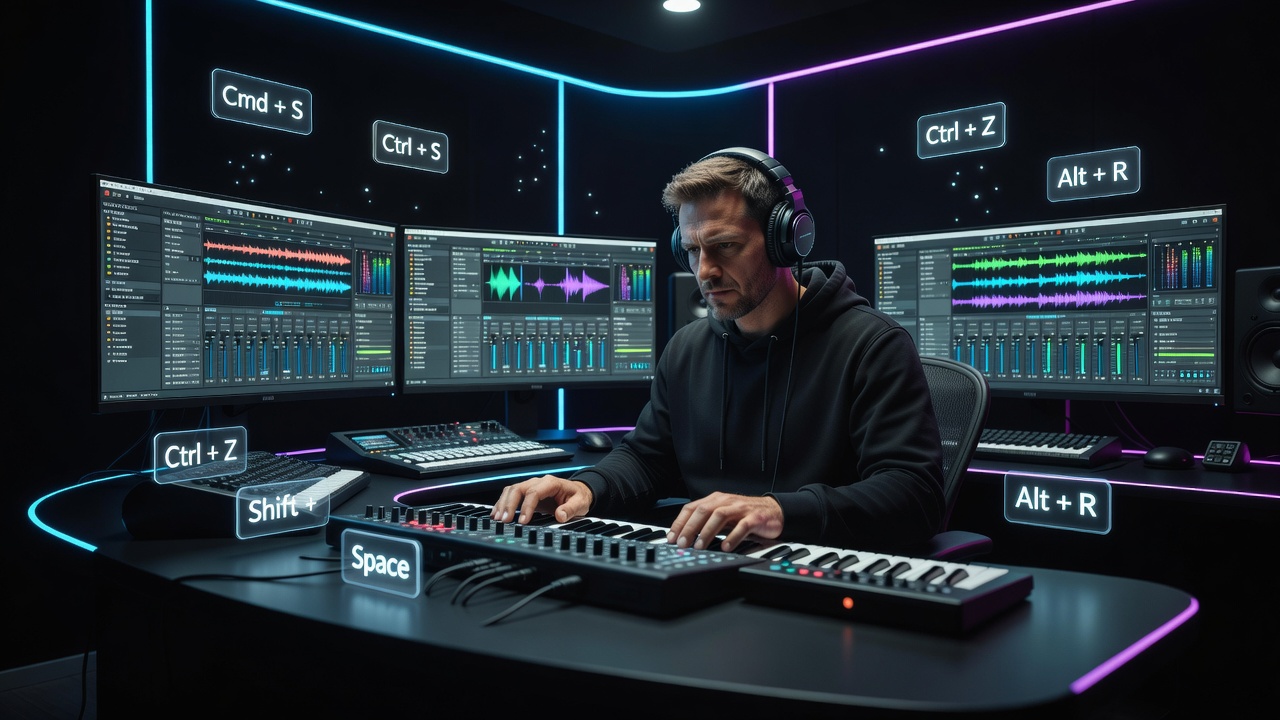
In 2026, music producers face increasing demands for rapid iteration in beat making and mixing. Keyboard shortcuts are no longer optional—they are essential tools that separate efficient creators from those bogged down by repetitive mouse actions. This guide explores the most impactful shortcuts across Ableton Live, FL Studio, and Logic Pro, focusing on editing, automation, and routing tasks. By adopting these, producers can transform their sessions, cutting production time dramatically while maintaining creative flow. The modern music production landscape involves complex projects with layered tracks, plugin chains, and tight deadlines, making efficiency critical for staying competitive.
Whether you are recording vocals, automating parameters, or routing complex signal chains, mastering native shortcuts delivers immediate gains. Real-world examples show how a producer might spend 45 minutes manually editing clips versus just 12 minutes with optimized shortcuts. Throughout this article we will break down specific commands, provide before-and-after comparisons, and outline workflows that integrate seamlessly into daily sessions.
Why DAW Shortcuts Matter More Than Ever in 2026
Modern sessions involve multilayered projects with dozens of tracks. Mouse-driven navigation interrupts momentum and increases fatigue. Shortcuts enable seamless transitions between tasks, supporting faster experimentation and refinement. Producers who integrate shortcuts into daily workflows report completing full mixes in significantly less time compared to manual methods. Beyond time savings, shortcuts reduce physical strain from excessive mouse use and help maintain creative focus during long studio sessions. In an era where collaboration often happens remotely, efficient file handling and quick navigation also improve communication with other producers and engineers.
Essential Shortcuts in Ableton Live
Ableton Live excels in live performance and arrangement views. Key shortcuts streamline clip editing and automation:
- Duplicate selected clip: Ctrl+D (Windows) or Cmd+D (Mac) — instantly replicate loops for quick arrangement building.
- Quantize notes or clips: Ctrl+U — corrects timing without opening menus.
- Toggle automation view: A — switches between clip and automation lanes rapidly.
- Group tracks: Ctrl+G — creates instant buses for routing and processing.
- Freeze and flatten selected track: Ctrl+Shift+F — prepares tracks for CPU-heavy sessions without losing editability.
Before-and-after example: A producer manually copying 16 clips across eight tracks previously took 20 minutes. Using duplicate and group shortcuts reduced this to under four minutes, allowing more time for creative sound design. Additional power comes from combining these with the browser search shortcut (Ctrl+F) to locate samples instantly while arranging.
FL Studio Shortcuts for Beat Making and Mixing
FL Studio’s piano roll and channel rack benefit enormously from targeted shortcuts:
- Clone selected channel: Ctrl+Alt+C — duplicates instruments and patterns instantly.
- Quick quantize in piano roll: Alt+Q — snaps notes to grid with one keystroke.
- Toggle mixer routing: F9 — opens mixer view without menu navigation.
- Arm recording on selected track: Shift+R — speeds up vocal or instrument capture.
- Slice audio to MIDI: Ctrl+Alt+S — converts recorded audio into playable MIDI data for further editing.
Practical workflow: During a beat session, using clone and quantize shortcuts allowed a producer to build a full drum pattern variation in three minutes instead of twelve, preserving inspiration. The slice command further accelerates remix creation by turning vocal chops into instantly playable instruments.
Logic Pro Shortcuts for Professional Routing and Automation
Logic Pro offers deep integration with macOS. Standout shortcuts include:
- Show/hide automation: A — reveals lanes for volume, pan, and plugin parameters.
- Create new audio track: Option+Cmd+N — adds tracks without right-clicking.
- Route to new aux: Control+Option+N — builds complex signal flows quickly.
- Smart quantize selected regions: Option+Q — applies flexible timing corrections.
- Toggle track alternatives: Option+Cmd+T — switches between different take versions during comping.
Before-and-after scenario: Routing a multi-mic drum setup manually once took 25 minutes. Native aux creation and automation shortcuts completed the same task in seven minutes. Track alternatives also allow producers to experiment with different vocal takes without creating duplicate projects.
Customization Techniques for Personalized Workflows
Most DAWs allow remapping shortcuts. In Ableton, access the preferences menu to assign custom keys for frequently used actions like freezing tracks. FL Studio’s wrapper settings let users define MIDI controller mappings alongside keyboard commands. Logic Pro’s key command editor supports importing and exporting profiles for consistent setups across multiple computers. Customization turns generic tools into personal accelerators tailored to individual production styles. Consider creating a dedicated “production mode” profile that prioritizes editing and routing commands over performance-oriented ones.
Time-Saving Recording and Editing Workflows
Combine shortcuts into repeatable sequences. For example, in any DAW: arm record (Shift+R equivalent), capture take, then immediately quantize and duplicate for layered harmonies. This pattern reduces decision fatigue during tracking sessions. Another workflow involves grouping all MIDI tracks, then batch-applying automation via the A key across the group, enabling simultaneous parameter changes that would otherwise require individual track edits. When recording multiple takes, use undo stacks strategically—many producers keep a mental checklist of three to five core shortcuts that handle 80 percent of daily tasks.
Native Shortcuts vs Third-Party Tools
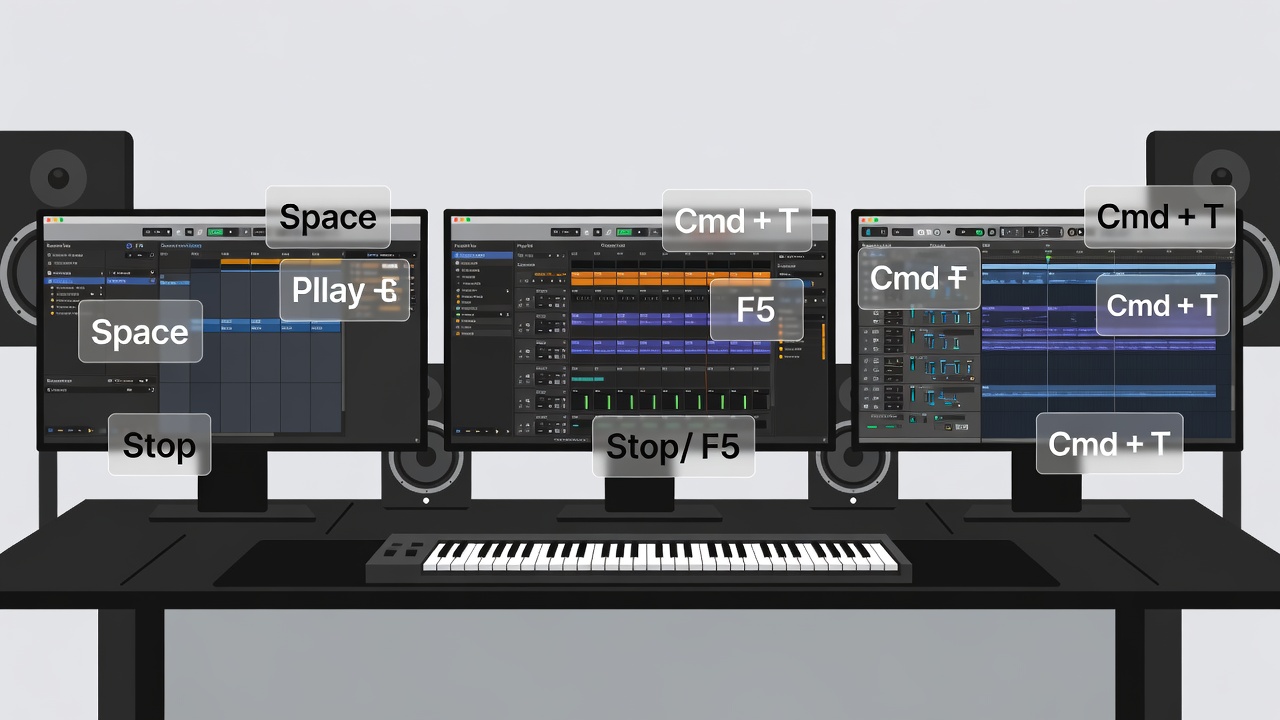
Built-in shortcuts remain reliable because they integrate directly with core functions and receive regular updates. Third-party utilities can add gesture support or cross-DAW consistency but may introduce latency or compatibility issues. For most producers, mastering native commands provides the best balance of speed and stability without additional software overhead. Ableton, Image-Line, and Apple Logic Pro resources detail updates to shortcut systems annually.
Common Mistakes to Avoid When Learning Shortcuts
Many producers attempt to memorize too many commands at once, leading to frustration. Instead, focus on context-specific groups such as recording shortcuts one week and automation shortcuts the next. Another frequent error is ignoring platform differences; always verify whether a command uses Ctrl or Cmd. Finally, avoid overwriting default shortcuts without documenting changes—export custom profiles regularly to prevent loss during software updates.
Downloadable Shortcut Cheat Sheet
To reinforce learning, a printable one-page reference compiling the shortcuts from all three DAWs is available. Print it and keep it visible during sessions until muscle memory develops. Regular practice turns these commands into automatic responses that feel natural within weeks.
FAQ: Common Productivity Hurdles in Music Production
How do I remember so many shortcuts?
Start with five core commands per DAW and practice them in every session. Gradually expand your set over weeks rather than attempting to memorize everything at once. Many producers tape a small printed list to their monitor for the first month.
Do shortcuts work the same across Windows and Mac?
Most DAWs use consistent modifier keys, but Cmd replaces Ctrl on macOS. Always check the DAW’s documentation for platform-specific mappings and create separate profiles if you switch between operating systems frequently.
Can shortcuts slow me down if I make mistakes?
Undo commands (typically Ctrl/Cmd+Z) exist in every DAW, making experimentation safe. The initial learning curve quickly pays off through repeated time savings once muscle memory forms.
Should beginners focus on shortcuts or core skills first?
Learn basic arrangement and mixing concepts alongside five essential shortcuts. This combined approach accelerates overall progress without overwhelming new users who still need to understand musical fundamentals.
What if a shortcut conflicts with my MIDI keyboard mappings?
Most DAWs allow priority settings or temporary disabling of keyboard input. Test mappings in a blank project before committing to a full session to avoid accidental triggers during recording.
Conclusion
Adopting these DAW shortcuts transforms music production from a laborious process into an efficient, enjoyable craft. Producers who invest time mastering editing, automation, and routing commands across Ableton Live, FL Studio, and Logic Pro gain a decisive advantage in 2026. Start incorporating a handful of these techniques today and watch your workflow accelerate.
No comments yet. Be the first!