 Instrumentiverse
Introduction: Why Optimized DAW Workflows Matter in 2026
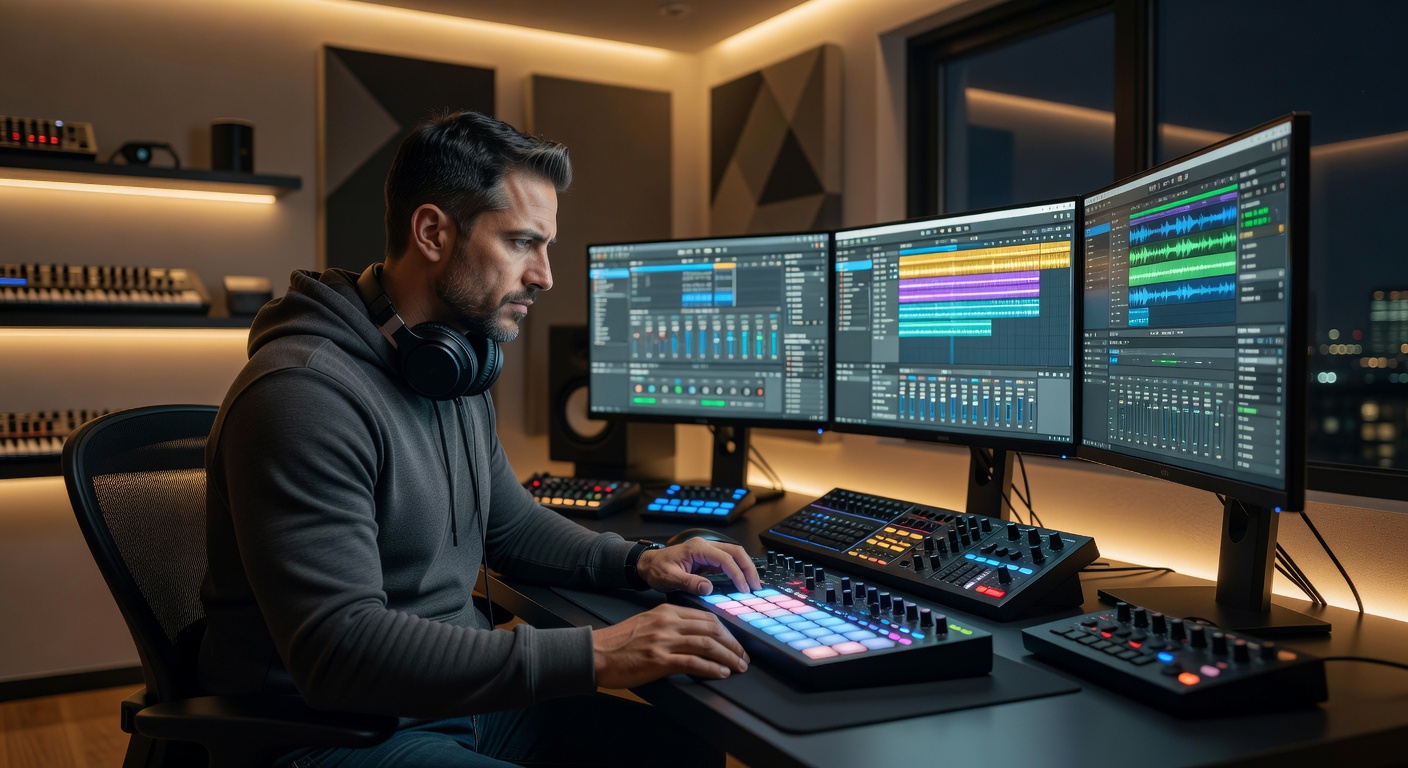
Music producers in 2026 operate in a fast-paced environment where deadlines are tight and creative demands are high. An efficient workflow within your digital audio workstation (DAW) can dramatically reduce production time while preserving energy for artistic choices. This comprehensive guide explores proven strategies for Ableton Live and FL Studio, including custom templates, keyboard shortcuts, sample library management, and macros. Each section provides step-by-step instructions, real-world examples, and practical tips to help producers at all levels enhance their output.
By addressing common pain points in beat making and mixing, these hacks align directly with productivity-focused searches in music production. Implementing even a few changes can lead to faster sessions and more polished results, allowing greater focus on innovation rather than technical friction.
The Importance of Streamlined Workflows in Modern Music Production
Traditional workflows often involve repetitive setup tasks that consume valuable time. Optimized approaches eliminate these bottlenecks through automation and organization. Producers who adopt structured systems report completing projects in half the time while maintaining higher creative consistency. This section examines how workflow efficiency impacts overall project quality and mental well-being during long studio sessions.
Key benefits include reduced decision fatigue, fewer errors in routing and effects, and improved collaboration when sharing project files. Whether working solo or with a team, these principles scale effectively across genres from electronic to hip-hop and beyond.
Setting Up Custom Templates for Instant Project Starts
Custom templates eliminate the blank-page problem by loading preferred settings automatically. This foundational hack saves minutes per session that add up significantly over multiple projects.
Detailed Steps for Ableton Live
Begin by creating a new Live Set and configuring core elements: add eight audio tracks for recording, six MIDI tracks for instruments, and dedicated return tracks for effects like reverb and delay. Insert standard plugins such as EQ Eight and Compressor on the master channel. Arrange a basic session view layout with clip slots pre-labeled for verse, chorus, and bridge. Once satisfied, navigate to File > Save Live Set as Template and assign a clear name like "2026 Hybrid Template." Restarting Live will present this as an option in the startup menu. Test the template with a short demo project to verify routing and plugin recall work flawlessly.
Detailed Steps for FL Studio
In FL Studio, start a new project and set up the mixer with 16 channels pre-routed for drums, bass, melodies, and vocals. Enable sidechain compression on relevant channels using the built-in Fruity Limiter. Populate the playlist with placeholder patterns for common song structures. Save via File > Save New Version, selecting the template folder. Access it instantly from the project browser on launch. Advanced users can include linked audio files or MIDI data for quick reference loops.
Real-world example: An electronic music producer using these templates reduced average setup time from 12 minutes to 45 seconds, enabling more experimentation within each session.
Mastering Keyboard Shortcuts for Fluid Navigation
Keyboard shortcuts form the backbone of efficient DAW operation by minimizing mouse movements. Prioritize learning 15-20 core commands relevant to your daily tasks before expanding further.
In Ableton Live, essential shortcuts include Cmd/Ctrl + N for new audio track, Cmd/Ctrl + Shift + M for mapping mode, and Option/Alt + Cmd/Ctrl + F to focus the browser. In FL Studio, use F4 to open the mixer, Ctrl + Shift + D for direct to disk recording, and the number keys 1-9 for quick pattern selection.
Practice method: Dedicate 10 minutes daily to drills using a printed cheat sheet placed near your workstation. Over two weeks, most producers achieve automatic recall that speeds navigation by 40 percent or more.
Organizing Sample Libraries for Lightning-Fast Access
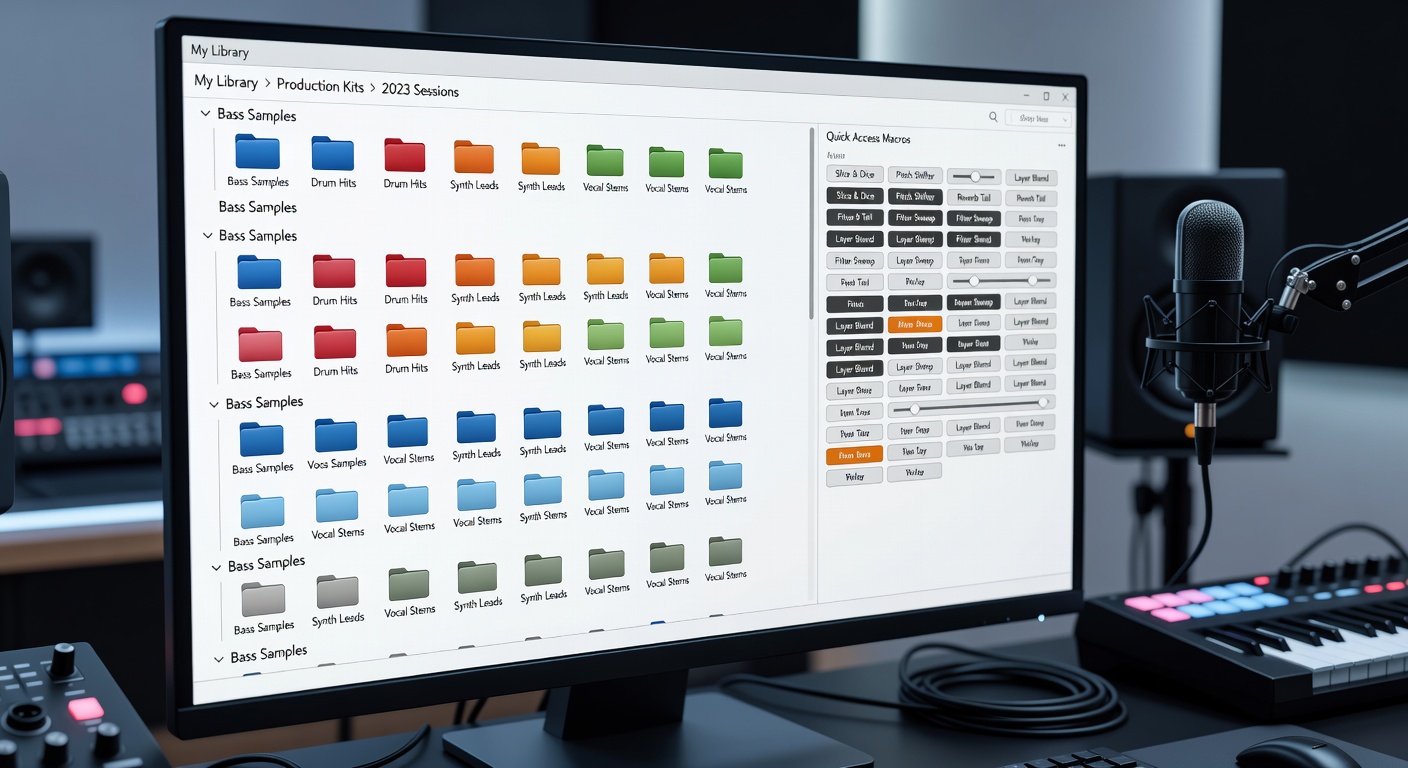
A well-structured sample library prevents time lost searching through disorganized folders. Create a hierarchical system starting with broad categories such as Drums, Melodic Loops, One-Shots, and Field Recordings. Subdivide further by genre, tempo range, and musical key using consistent naming conventions like "Kick_808_140BPM_Cmin."
Tools like the built-in browsers in both DAWs support tagging and favorites. In Ableton, drag key folders into the Places section and create custom collections. In FL Studio, leverage the browser's search filters and color coding for visual organization. Update your library monthly by removing unused files and adding new acquisitions to maintain relevance.
Example application: A trap producer reorganized 80,000 samples into this system and located ideal sounds for new beats in under two minutes instead of the previous average of eight minutes.
Automating Repetitive Tasks with Macros and MIDI Mapping
Macros allow control of multiple parameters through a single interface element, ideal for repetitive mixing or arrangement tasks. In Ableton Live, create a macro rack by grouping devices and assigning knobs to control filter resonance across several tracks simultaneously. Record automation clips that trigger the macro during build-ups.
FL Studio users can employ the Patcher plugin to chain controls or use the Macro plugin for knob-based assignments. Map a MIDI controller fader to adjust overall bus volumes for quick mix adjustments during playback.
Advanced tip: Combine macros with MIDI learn functions to integrate hardware controllers, creating tactile control that feels more intuitive than software-only adjustments.
Common Mistakes to Avoid in Workflow Optimization
Many producers overcomplicate templates with too many tracks or plugins, leading to higher CPU usage. Start minimal and expand only as needed. Another frequent error involves inconsistent file naming, which undermines search efficiency. Always use standardized conventions from day one. Finally, neglecting regular backups of templates and libraries can result in lost work during system updates.
Traditional vs Optimized Workflow: Expanded Case Studies
Case Study 1 – Traditional Approach: A producer begins each session from scratch, manually creating tracks and hunting samples without a system. Average completion time reaches seven hours per track, with frequent interruptions from technical setup. Creative flow suffers due to constant context switching.
Case Study 2 – Optimized Approach: After implementing templates, shortcuts, and macros, the same producer finishes tracks in under three hours. The structured environment supports rapid iteration, resulting in more variations explored per project and higher overall satisfaction.
Case Study 3 – Team Collaboration: When sharing optimized templates across a small production team, file compatibility improves and revision cycles shorten by 50 percent, demonstrating scalability beyond solo use.
Practical Implementation Roadmap
Week 1: Focus exclusively on building and testing one template per DAW. Week 2: Memorize and drill the top 10 shortcuts. Week 3: Reorganize your primary sample folders. Week 4: Develop and integrate three core macros. Track progress by logging session durations before and after changes to quantify improvements.
Conclusion
These DAW workflow enhancements provide a clear path to greater efficiency without sacrificing creativity. Begin with templates and shortcuts for immediate wins, then progress to library organization and macros. Consistent application yields compounding benefits over time. For further reading, consult resources at Ableton, Image-Line, and Sound on Sound.
FAQ
How long does it take to create effective custom templates? Initial setup typically requires 30 to 60 minutes, after which the template serves indefinitely with occasional refinements.
Should beginners prioritize shortcuts or templates first? Start with templates to establish a solid foundation, then layer in shortcuts as familiarity with the DAW interface grows.
What is the ideal sample library size for most producers? Quality outweighs quantity; aim for 20,000 to 50,000 well-organized files rather than hoarding millions of uncurated sounds.
Can macros cause compatibility issues across different computers? Yes, if plugin versions differ. Always include notes in your template file about required plugins and versions.
How often should sample libraries be reorganized? Perform a light review quarterly and a full reorganization annually to keep the system current with your evolving style.
Are there risks to over-relying on automation in mixing? Over-automation can reduce hands-on learning. Use macros as aids while periodically mixing manually to maintain skill development.
No comments yet. Be the first!